Showing posts with label vcenter. Show all posts

Friday, May 18, 2018

My Experiences Updating VCSA 6.5a to 6.5 U2

Today we'll be updating my lab's VCSA 6.5a (build 4944578) to version 6.5 Update 2 (build 8307201) which was released  May 3 2018. vCenter Server 6.5 U2 includes some backported features of vSphere 6.7 making it a slick update for users not quite ready to move to version 6.7. Some of the new features include

NOTE: Currently, upgrading from vSphere 6.5 U2 to vSphere 6.7 GA is not supported

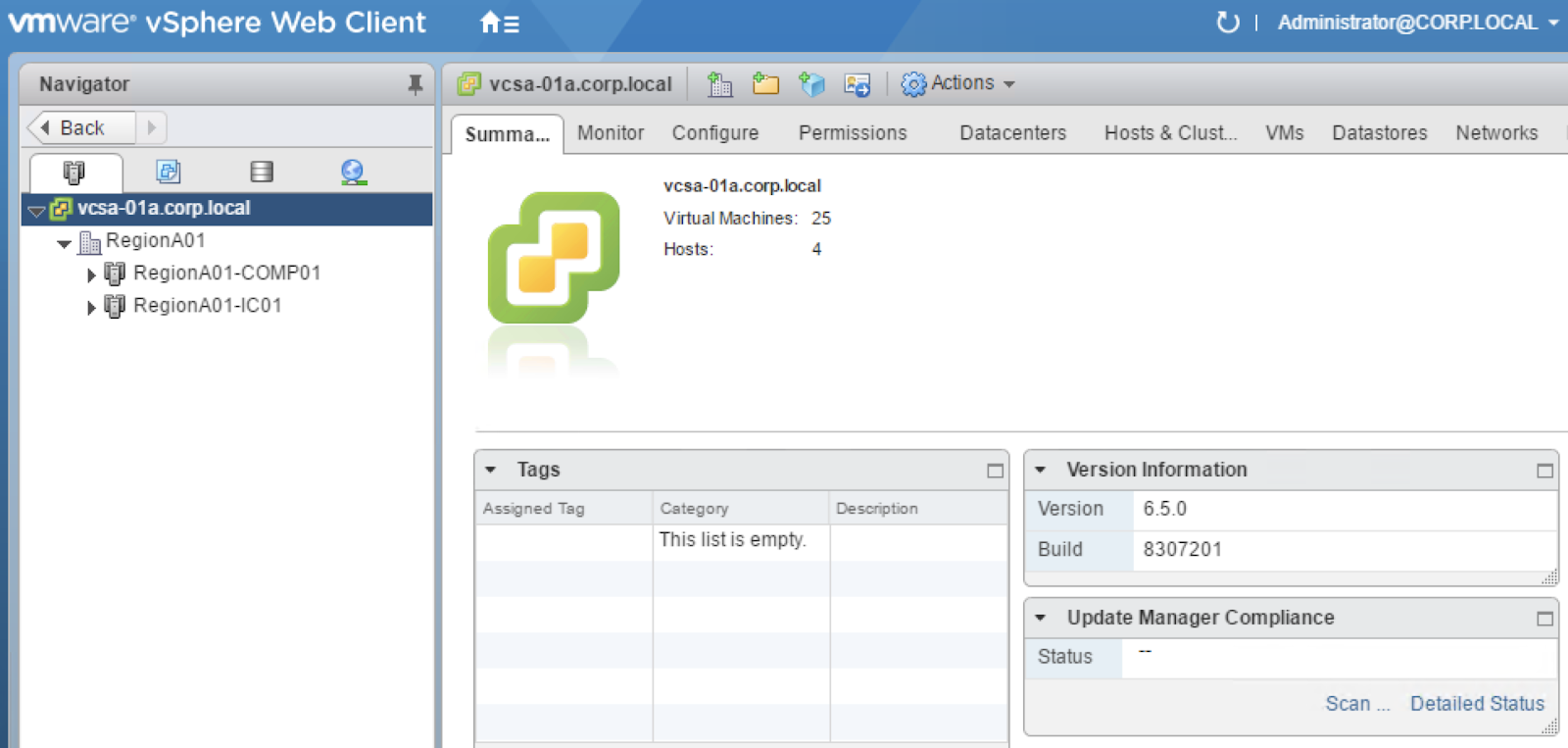
You can verify your VCSA version by clicking on the top most level of the hierarchy tree in the vSphere Web Client and viewing the Summary tab


Before I perform this update, I'm going to verify compatibility with my registered and connected solutions with the VMware Interoperability Matrix. 

Then, I'm going to login to the vCenter Server Appliance Management Interface (VAMI) at <https://fqdn-of-vc:5480and ensure overall Health Status is green, take a VM-level snapshot (not pictured) and create a native VCSA Backup.


Upon entering my Backup details and clicking Next, I got a message stating that the service 'statsmonitor' wasn't running


A quick SSH session to the VCSA and running service-control --start vmware-statsmonitor resulted in starting the service


This allowed the Backup to continue


After it validated the input, we're ready to click Finish, which initiated the backup and showed a Backup Progress Bar


With our VM snapshot and VCSA Backup in place, we're ready to go to the Update section of the VAMI and check for Updates


Click Install Updates and accept the EULA to begin the update. My update jumped straight to 40% with status "Start staging packages" then had a "Download Failed"


At this point, I took a break for the evening (hey can't a man eat and unwind with some SNES Classic?!) and revisited it in the morning. This time, I did a tail -f on /var/log/vmware/applmgmt/software-packages.log to watch the progress of the downloads and to my surprise, the downloads worked this time without any changes made. If you run into a similar error, I would review this log to see what could be causing the downloads to fail (proxy config, incorrect URL, etc).

The Update window status changed to "Start running pre-install scripts"


Then made its way to 100% with the message "Packages upgraded successfully, reboot required to complete the installation"


And checking the software-packages.log we can confirm the packages were properly staged and ready for reboot


Clicking OK, I proceeded to the Summary Tab where I could click Reboot


Upon logging back in to the VAMI, we can verify the new build version!


Confirming in vSphere Web Client

Remember, we haven't fully upgraded to vSphere 6.5 U2 until the ESXi hosts are also updated. The embedded VUM instance in VCSA 6.5 makes that an almost effortless task.

Thanks for reading and good luck with your updates!
Share:

Tuesday, February 4, 2014

Use Tags to not lose track of View Linked Clone Replicas

The Problem
If you've managed a View Linked Clone pool for any amount of time, you probably know the frustration that can come with trying to determine which replica is tied to a particular pool. This information can be especially important when trying to find unused replicas that are hanging around using up precious storage space. Or maybe when auditing your inventory, you find you have 5 View Pools, but 6 replica VMs. How do we know if we really are using all 6 replicas?

There is a public VMware Knowledge Base article (2009844) that utilizes SviConfig.exe to automate the process of finding unused Replicas, but sometimes this command can be less than helpful. The command can often fail with vague errors, and only works with registered replicas in vCenter's inventory. It also doesn't tell you what pool the replica is tied to!

There is also KB1031842 that goes over an ESXi command that can show mapping of what VM is using a particular replica. But in a large environment, this can be a tedious task parsing through the hundreds of lines of output.

The Solution
The nice thing about Replicas is that they are simply a clone of our Parent VM. This means that outside of the protection View puts on the VM itself.. it's a regular ol' virtual machine! These objects easily Tagged to help with sorting and inventory management.

Tags are a very powerful organization mechanism that were introduced in vSphere 5.1. Tags are recorded as metadata for the object it's assigned to and can be super helpful for searching the vCenter.

To create a Tag

  1. From the vSphere Web Client Home, click Tags

  2. Click the Items tab and click Tags

  3. Click the New Tag icon

  4. In the vCenter Server drop-down menu, select the vCenter you want the Tag to reside on

  5. Enter a name for your Tag. I have matched my Tag name to my View Pool Name

  6. For Category, select/create a Category. I named mine View

  7. For the Tag Category options, choose Many tags per object. This allows multiple tags from the View category to be applied to an object at any one time.
    NOTE: You cannot change the cardinality from Many tags per object to 1 tag per object

  8. Click OK


You can find more information on Tags at the vSphere 5.1 Documentation Center


Assigning your Tag to a newly created Replica


  1. After creating your Linked Clone Pool in View, you'll find the parent VM being cloned to the Replica in the More Tasks pane


     2. Under Related events find the Replica name your Parent VM is cloning to


     NOTE: If your Replica was created earlier, no worries. You can search your vCenter's Task History      to find the Replica name


     3. Now you can go to your Hosts and Clusters view or VMs and Templates view


    • Find and Right Click the desired Replica

    • Click Assign Tag

    • Choose your Tag and click OK

    • Your Replica is now tagged!


Congratulations! You can now easily search your vCenter inventory for your Tag name and find which replica is tied to that Tag. Depending on your naming conventions, your search results may vary. As you can see from my example, my tag matches my View Pool's vm naming so that gets returned as well


You can also click the Tag name under Tags and find your assigned Replica


Thanks for reading!
Share: